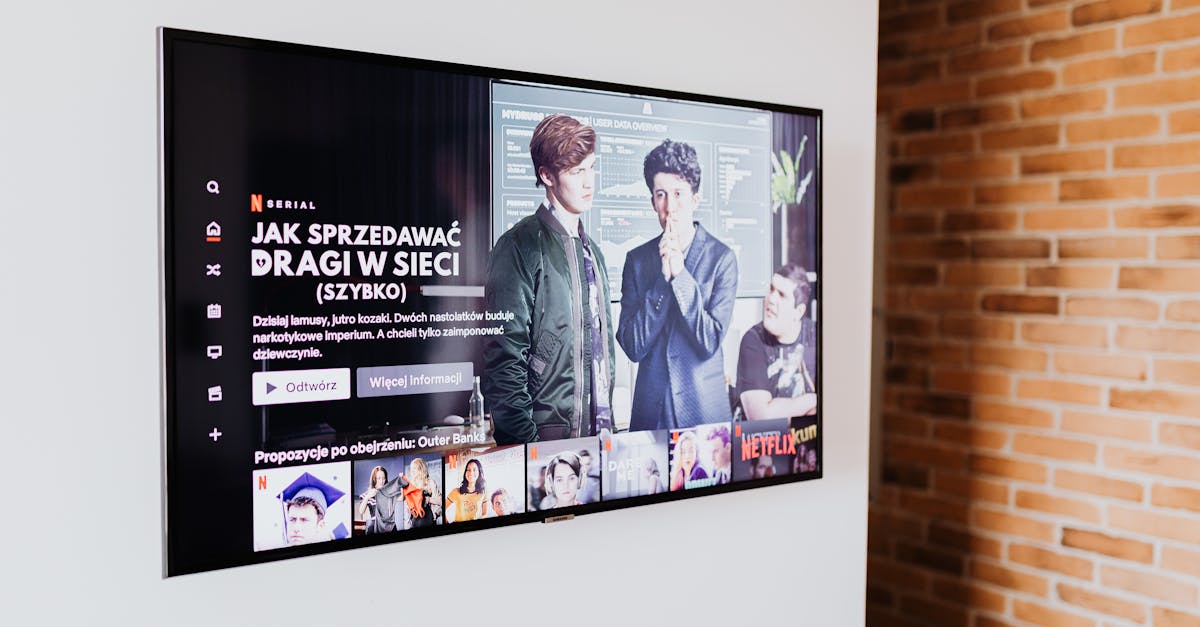
5 Counterintuitive Reasons Your Smart TV Is Slower Than Advertised
You just unboxed a brand new smart TV, excited for seamless streaming and crisp visuals. You’ve heard all the promises of lightning-fast performance and an intuitive interface. Yet, within a few weeks, or sometimes even days, that initial joy turns into frustration. Apps load slowly, menus stutter, and switching inputs feels like navigating through treacle. It’s a common scenario, and in my experience, the problem isn’t usually a faulty unit or a weak internet connection. The truth is, many of us are inadvertently sabotaging our smart TV’s performance with habits and settings that seem logical but have counterintuitive effects. I’ve spent countless hours troubleshooting these exact issues for friends and family, and what changed everything for them (and me) was understanding these deeper, often overlooked culprits.
Key Takeaways
- Background app processes and excessive notifications silently drain your smart TV’s processing power.
- Automatic software updates, while important, can unexpectedly introduce performance dips and require a manual reset.
- Too many connected Bluetooth devices or high-bandwidth peripherals can create invisible bottlenecks.
- Pre-installed bloatware and unnecessary data collection settings actively consume system resources.
- Infrequent power cycling prevents a full system flush, leading to cumulative performance degradation.
Background Apps and Notifications Are a Silent Drain
When you exit an app on your smartphone, it often remains suspended in the background, ready for quick relaunch. Smart TVs, especially those running Android TV or similar operating systems, often mimic this behavior. The problem is, unlike a phone you restart daily, your TV might stay on for weeks or months at a time, allowing these background processes to accumulate. Each open app, even if not actively in use, consumes a slice of your TV’s RAM and CPU cycles. What compounds this is the relentless stream of notifications – ‘New show available on Streaming Service X,’ ‘Update your profile on App Y,’ ‘Promo from Channel Z.’ These notifications, while seemingly innocuous, require constant background checks and resource allocation, adding up to a significant drag.
In my own living room, I noticed my smart TV becoming sluggish after a few weeks. My initial thought was my Wi-Fi. It wasn’t. After manually closing every single app from the multitasking menu (a feature often hidden deep in settings), the responsiveness immediately improved. The mistake I see most often is users simply hitting ‘Home’ to leave an app, assuming it’s truly closed. It’s not. To combat this, periodically access your TV’s ‘recent apps’ or ‘running applications’ menu (the exact name varies by brand, but usually involves a long press on the home button or navigating through system settings) and force-close anything you’re not actively using. For notifications, dive into each app’s settings and disable all but the most essential alerts. This simple, consistent habit can free up a surprising amount of processing power and keep your TV running smoothly.
Automatic Updates Can Be a Hidden Performance Dip
Software updates are crucial for security and new features, and having them set to ‘automatic’ seems like a convenience. However, in the world of smart TVs, automatic updates can be a double-edged sword, often causing temporary or even persistent performance issues immediately after installation. A new firmware version might not optimize as effectively with older hardware, or the update process itself might leave behind temporary files or corrupted caches that slow things down. Sometimes, the update changes default settings or enables new features that silently consume resources.
What changed everything for me was shifting from automatic updates to manual control. Instead of letting the TV update whenever it pleased, I scheduled updates for times when I could monitor its performance afterward. More importantly, after any significant firmware update, I perform a ‘soft reset’ or even a ‘factory reset’ if the performance drop is severe. A soft reset (usually just unplugging the TV for 60 seconds) can clear temporary glitches. A factory reset, while a hassle because it means re-logging into apps, often resolves deeper, post-update conflicts by wiping the system clean. It’s counterintuitive to reset a brand-new, updated device, but it often ensures the new software is running on a truly optimized foundation, free from residual conflicts that can cause unexpected slowdowns.
Too Many Connected Bluetooth Devices Create Bottlenecks
Smart TVs are increasingly becoming the hub of our entertainment systems, connecting to soundbars, headphones, game controllers, and even smart home devices via Bluetooth. While convenient, an excessive number of paired Bluetooth devices, especially if some are constantly trying to connect or are experiencing interference, can subtly degrade your TV’s overall performance. Bluetooth, despite being low-power, still requires the TV’s system resources to manage connections, maintain profiles, and handle data streams. When these resources are stretched thin, the impact might not be a dropped audio connection, but rather a general sluggishness in menu navigation or app loading.
I once helped a friend whose TV was inexplicably slow. We checked everything. Then, I noticed she had five different Bluetooth headphones, two game controllers, and a smart speaker all paired, even though only one was in active use. The problem was, many of these devices were constantly broadcasting their presence or attempting to re-establish connections. My recommendation: audit your Bluetooth pairings. Disconnect or ‘forget’ any devices you don’t use regularly. For devices you do use, try to limit active connections to one or two at a time. The mistake I see most often is people treating Bluetooth pairing as a ‘set it and forget it’ feature without realizing the cumulative resource drain it can impose, especially on a TV’s often less powerful processor compared to a smartphone.
Bloatware and Invasive Data Collection Actively Drain Resources
Many smart TVs come pre-loaded with a surprising amount of bloatware: apps for obscure streaming services, games you’ll never play, or even shopping channels. These apps often run background processes, push notifications, and consume storage space. Worse yet, many smart TVs have aggressive data collection settings enabled by default, designed to track your viewing habits, app usage, and even voice commands for targeted advertising and ‘content recommendations.’ This data collection is not passive; it requires active processing and network bandwidth, silently eating away at your TV’s performance.
In my experience, disabling these features can make a noticeable difference. Dive deep into your TV’s privacy settings (often under ‘Terms and Conditions,’ ‘Usage Data,’ or ‘Diagnostics’). Look for options like ‘Interactive Services,’ ‘Content Recognition,’ or ‘Smart Features’ that send data back to the manufacturer or third parties, and turn them off. Uninstall any pre-installed apps you don’t use, just as you would on a phone. The mistake here is assuming these background processes are benign. They are not. They are constantly at work, often competing for the same limited resources your streaming apps need, and reclaiming those resources is a straightforward way to boost responsiveness.
Infrequent Power Cycling Prevents a Full System Flush
Unlike the older, ‘dumb’ TVs we used to simply turn off with a remote, modern smart TVs rarely truly shut down. Most of the time, pressing the power button just puts them into a low-power standby mode, keeping their operating system suspended in memory for a quick restart. While convenient, this means the TV’s memory and processes are rarely fully cleared. Over time, temporary files, cached data, and minor software glitches accumulate, much like a computer that’s never restarted. This cumulative digital ‘dust’ can lead to gradually diminishing performance, manifesting as slower app launches, intermittent freezing, or general sluggishness.
What changed everything for me, and for many others, was adopting a regular power cycling routine. Once a week, or at least every other week, I perform a ‘hard reset’ or ‘power cycle.’ This involves unplugging the TV from the wall socket for at least 60 seconds (some suggest up to 5 minutes to ensure all residual power drains). This forces the entire operating system to reboot from scratch, clearing out all accumulated temporary data and refreshing the system. It’s a simple, free habit that often brings an immediate, noticeable improvement in speed and responsiveness, combating the slow creep of performance degradation that often plagues smart TVs in constant standby. Don’t just rely on the remote’s power button; give your TV a real break to keep it at its best.
Frequently Asked Questions
How often should I hard reset my smart TV?
Ideally, you should perform a hard reset (unplugging it for 60 seconds) at least once a month, or whenever you notice a significant slowdown or glitch. For heavy users who keep their TV on for many hours daily, a weekly reset can be beneficial.
Can my internet speed really affect my TV’s responsiveness, even if it’s not streaming?
Yes, to a degree. Many smart TV features, including content recommendations, ads, and background app updates, require an internet connection. If your Wi-Fi signal is weak or your overall internet speed is very slow, the TV’s attempts to fetch this data can consume system resources and make the interface feel sluggish, even when you’re not actively streaming.
Is it safe to uninstall pre-installed apps on my smart TV?
For most pre-installed third-party apps (like specific streaming services you don’t use, news apps, or games), it is generally safe to uninstall them. However, avoid uninstalling core system apps or those explicitly labeled as essential by your TV manufacturer, as this could cause instability. If you’re unsure, search for your TV model online or check your TV’s manual.
Will buying a more expensive smart TV guarantee faster performance?
While more expensive smart TVs often come with more powerful processors and more RAM, which can lead to better initial performance, they are still susceptible to the same issues of background processes, bloatware, and accumulated cache if not managed properly. The principles of maintenance discussed here apply regardless of the TV’s price point.
Does turning off ‘Smart Features’ or data collection disable important functionalities?
Turning off some data collection or ‘smart’ features might mean you lose personalized content recommendations or voice assistant capabilities. However, core functionalities like streaming, watching live TV, or using most apps will continue to work. It’s a trade-off between privacy/performance and highly tailored (and often resource-intensive) features. You can usually toggle these settings individually to find a balance that works for you.
By understanding these often-overlooked culprits and adopting a few simple habits, you can reclaim your smart TV’s performance and enjoy the seamless, responsive entertainment experience you paid for. It’s not always about buying the latest model or upgrading your internet; sometimes, it’s about smarter management of the tech you already own.
Written by Sarah Jenkins
Lifestyle & Practical Living
A passionate home cook and budget enthusiast, Sarah specializes in making everyday living both delightful and economical.
You Might Also Like
Six Months Without Hair Conditioner: My Unexpected Shift in Hair Health
After years of conditioning, I cut it out entirely for six months. My hair's transformation was surprising, leading to less grease and more natural volume.
Secure Bluetooth Earbuds From Eavesdropping in Public Without Buying New Gear
Learn to secure your Bluetooth earbuds from eavesdropping in public by adjusting settings and habits, not buying new devices.
7 Overlooked Reasons Your Smart TV Isn't Actually Smart
Discover the 7 hidden reasons why your smart TV often disappoints, and what actually delivers on the promise of seamless home entertainment.